
We have been having an issue where, when a specific Windows 2022 server reboots (Windows update or some other reason), after reboot:
- We cannot use Tailscale to get into the server
- Dentrix is not running and therefore none of the client machines can access it
- Hamachi (our legacy mesh network) weirdly still sometimes works
When we log in through Hamachi after this happens, sometimes as late as the next morning, the server looks like it is just finishing rebooting. Services start up that should have been running all night. Client machines are able to connect again.
This is obviously concerning, because if we weren’t there to log in, the network would be in a bad spot when the staff started their day.
After this happened several times over the past 6 months, I think I stumbled upon the specific issue and a possible solution.
Essentially, this is a common startup race condition with the Service Control Manager (SCM), especially in Windows Server 2022.
This usually happens when the service takes too long to initialize or depends on a system resource that isn’t ready during early boot. The presence of Event ID 7000 and 7009 confirm a startup timeout.
I verified a ton of Events with ID 7000 and 7009[1] right when the reboot took place, for critical services that should have restarted (notably, Tailscale and Dentrix).
To resolve, I
- Open Registry Editor and go to: HKEY_LOCAL_MACHINE\SYSTEM\CurrentControlSet\Control
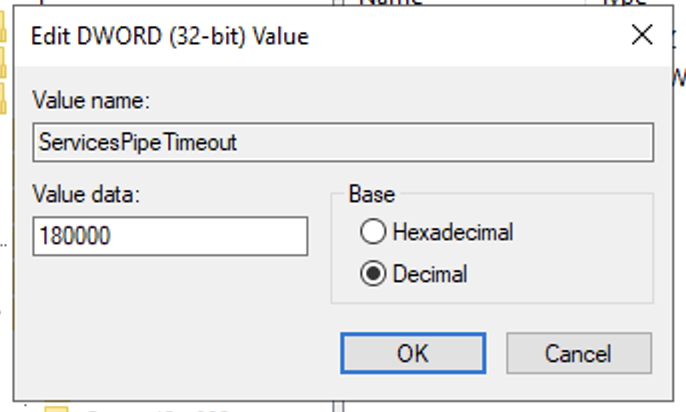
- Create or edit a DWORD value named: ServicesPipeTimeout
- Set it to 180000 (decimal) for 3 minutes
Next I went to start > services.msc. For each service that had a 7000 or 7009 event, I switched its startup mode from Automatic to Automatic (delayed).
Then, when the staff wasn’t around, I reboot the server.
This appears to have addressed it! No more 7000 / 7009 errors, and I can successfully Tailscale into the server after a reboot.
[1]
To check for Event ID 7000 or 7009 (which indicate service startup timeouts) on Windows Server 2022, use the built-in filtering tools in Event Viewer:
- Open Event Viewer: Click Start, type Event Viewer, and select Run as administrator
- Navigate to System Logs: In the left-hand pane, expand Windows Logs and click on System
- Filter the Log:
- In the right-hand Actions pane, click Filter Current Log…
- In the Event level section, check Critical, Warning, and Error
- In the box labeled , type 7000, 7009
- Click OK